How to block distracting apps on iPhone while you study
Short answer
How do I block apps on my iPhone while studying?
A Focus silences notifications and can show a quieter Home Screen. To close the apps, use Screen Time: Downtime (Screen Time Schedule on iOS 27) for your study hours, and have a friend set the Screen Time passcode so that you don't know it.
With Firmlock, pick the apps that pull you away, choose the length of your study block, from 15 minutes to 24 hours, and slide to lock. A strict session can't be ended early.
Firmlock: Strict App Blocker is the author's app. It needs Firmlock Pro. Yearly: $29.99 after a 14-day free trial. Monthly: $4.99. Lifetime: $79.99 once. iOS 26.4 or later; not in the EU yet.

Set up a Study Focus (iOS 26)
- Open Settings › Focus, tap the plus button, then Custom. Name it Study.
- Under People and Apps, choose who and what may still notify you.
- Choose a Home Screen page that has only your study apps, and tap Add Schedule to turn the Focus on at set times.
Source: Apple iPhone User Guide (iOS 26): Set up a Focus.
Close apps during study hours with Downtime
- Open Settings › Screen Time › Downtime, tap Scheduled and choose Customize Days, for example 4:00 PM to 7:00 PM on school days.
- Under Always Allowed, add what you need: notes, a dictionary, the calculator.
- Set a Screen Time passcode, then turn on Block at Downtime.
Source: Apple iPhone User Guide (iOS 26): Set schedules with Screen Time. On iOS 27, the same idea is a Screen Time Schedule (Apple iPhone User Guide (iOS 27): Screen Time Schedules and Time Allowances).
Where these fall short
- A Focus hides apps and silences them, and they still open from App Library or search.
- Downtime follows a fixed schedule. A study block that starts now and lasts 90 minutes isn't an option.
- Downtime closes everything except the allowed list. If you set the passcode yourself, you can type it; a friend has to hold it (how).
Lock apps for a study block with Firmlock
- Tap Change apps and websites. Pick Social, Games and Entertainment, or single apps. Under Close their websites too, tap the services you'd open in a browser, such as YouTube or TikTok. Your study apps stay open.
- For one block, open Lock, choose the length (for example 2 hours) and turn on Strict if you want no End button. Then slide the bolt.
- For the same hours each week, add a schedule. Work hours (9 to 5, Monday to Friday) is one of the starting points, and you can change its days and hours. Firmlock keeps up to 15 schedules.
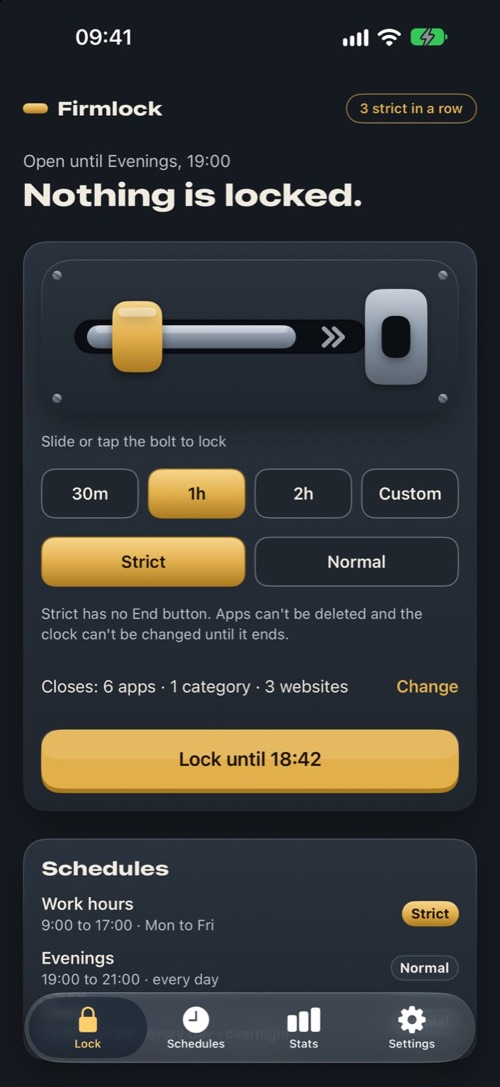
Choose the length of your study block. 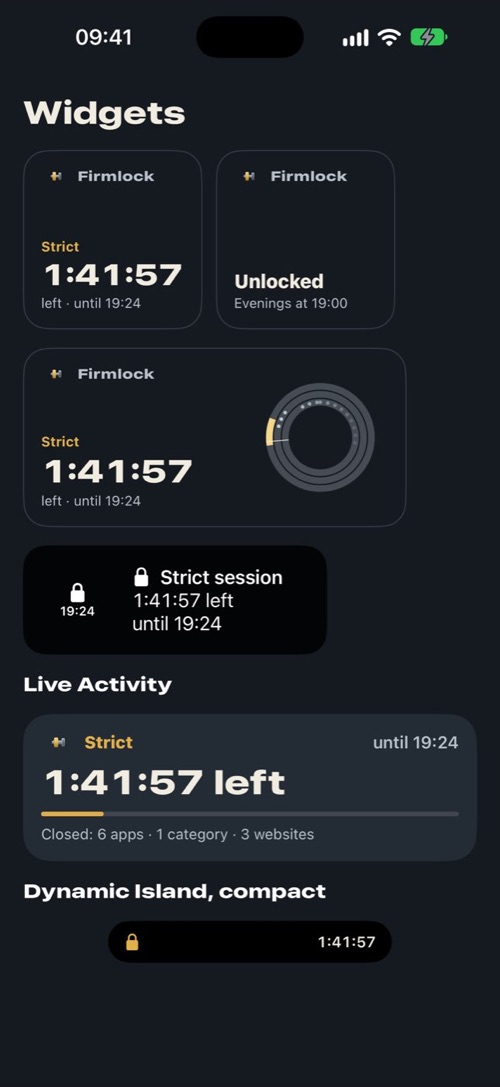
Time left on the Lock Screen and in the Dynamic Island. 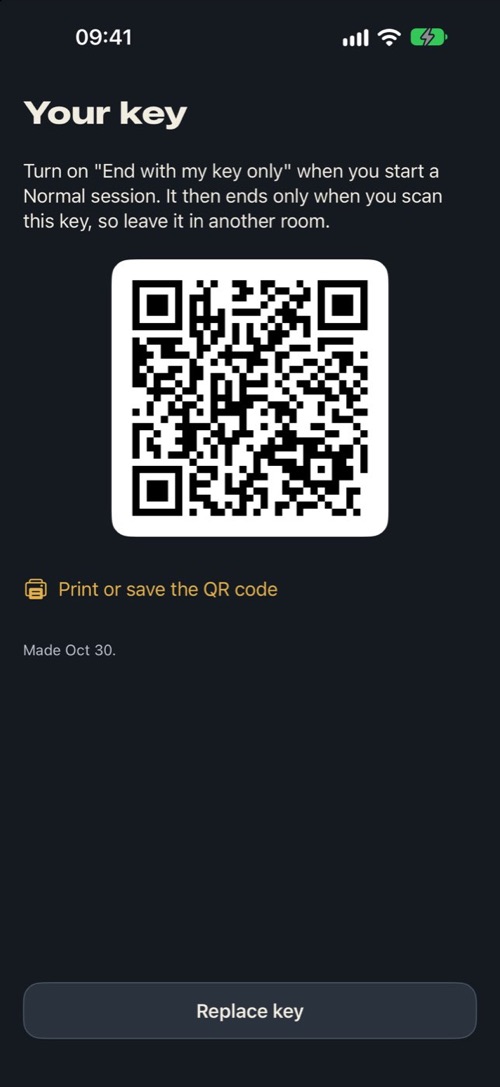
A printed key, for a session you can't end from your desk.
The time left shows on the Lock Screen and in the Dynamic Island, so you can check it without opening anything. In a Normal session you can take up to 3 breaks a day of 15 minutes each, after a 20-second breathing pause. To make a Normal session hard to end from your desk, turn on End with my key only: it ends early only when you scan your key, a QR code you print and leave in another room. Stats show how many times you went back to a closed app this week.
Questions
Can I keep my study apps open?
Yes. Firmlock closes only the apps and websites you pick. Notes, your browser for class and anything else you leave out stay open.
Does Firmlock have a Pomodoro timer?
No. The shortest session is 15 minutes, and a Normal session allows up to 3 breaks of 15 minutes a day. You can start a 25-minute session each time, but the breaks between them aren't timed.
Does it keep blocking if I close Firmlock?
Yes. Sessions and schedules run through Apple's Screen Time, so they start and end on time while Firmlock is closed.
Will a Study Focus block apps?
No. It silences notifications and can show a different Home Screen page.
Can I study for an exam on weekends too?
Yes. Each schedule has its own days and hours, so you can keep one for school days and another for Saturday and Sunday.