How to lock apps on iPhone so you can't open them for a while
Short answer
How do I lock apps on my iPhone for a certain time?
iOS has two kinds of lock. Require Face ID (touch and hold the app icon) keeps other people out, but your own face opens the app, and it has no timer. To keep yourself out for a while, use Screen Time: an App Limit or Downtime, with a passcode someone else holds.
Firmlock locks the apps you pick for 15 minutes to 24 hours. You slide a bolt and they stay closed until the time is up. A strict lock has no End button.
Firmlock: Strict App Blocker is the author's app. It needs Firmlock Pro. Yearly: $29.99 after a 14-day free trial. Monthly: $4.99. Lifetime: $79.99 once. iOS 26.4 or later; not in the EU yet.

Lock an app with Face ID (iOS 26)
- On the Home Screen, touch and hold the app icon until the menu opens.
- Tap Require Face ID (or Touch ID or Passcode).
- From now on, the app asks for Face ID each time it opens. When you leave it, it locks again.
Source: Apple iPhone User Guide (iOS 26): Lock or hide an app. Apple's guide lists some built-in apps that can't be locked: Calculator, Camera, Clock, Contacts, Find My, Maps, Shortcuts and Settings. To undo it, touch and hold the icon and tap Don't Require Face ID.
Why the Face ID lock doesn't stop you
- It is a privacy lock. It checks that the person opening the app is you, and you always pass.
- It has no timer, so you can't say “closed until 6 p.m.”
- Hiding the app moves it to a Hidden folder at the bottom of App Library. It still opens with Face ID.
Lock apps with Screen Time (iOS 26)
- Open Settings › Screen Time › App Limits and tap Add Limit. Pick the apps or a whole category, such as Social, and set a time.
- For fixed hours, use Downtime instead: Screen Time › Downtime › Scheduled, then set the start and end.
- Set a Screen Time passcode (Screen Time › Lock Screen Time Settings), then turn on Block at End of Limit or Block at Downtime. Without a passcode, the limit screen lets you keep going.
Source: Apple iPhone User Guide (iOS 26): Set schedules with Screen Time.
On iOS 27, Apple renamed these menus: Downtime became Screen Time Schedule and App Limits became Time Allowances (Apple, iOS 27). The steps above are from the iOS 26 guide.
Where Screen Time falls short
- There is no “lock for the next two hours” button. App Limits count minutes per day, and Downtime runs on a fixed schedule.
- Downtime closes every app except the ones you allow, so you list what to keep instead of what to lock.
- If you chose the passcode, you can type it. The Ignore Limit guide shows how to have a friend hold it.
Lock apps for a set time with Firmlock
- Open Lock and tap Change apps and websites. Pick single apps or whole categories, like Social or Games. Apps you don't pick stay open.
- Pick how long, from 15 minutes to 24 hours, and pick Strict or Normal.
- Slide the bolt. The apps show Firmlock's shield, with the time they open, until the time is up.
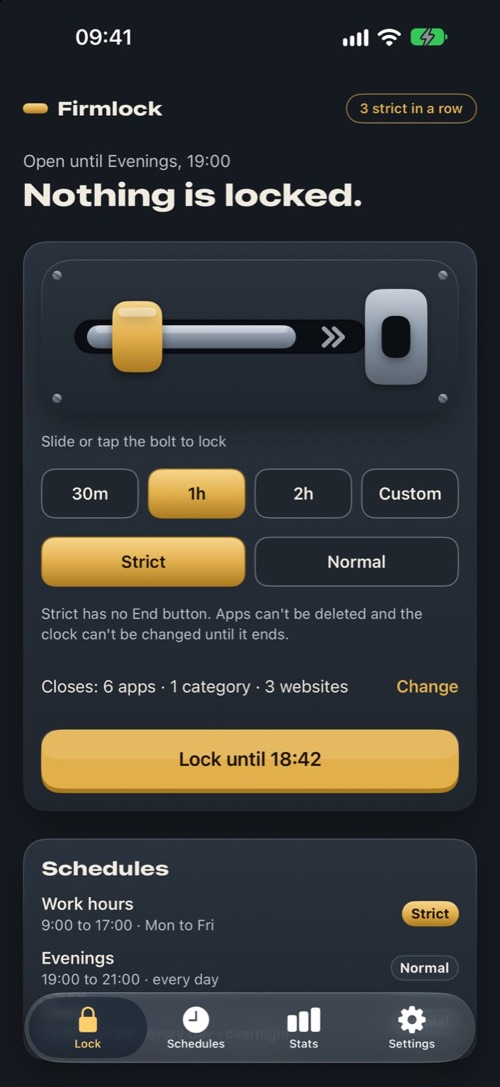
Pick a length, then slide the bolt. 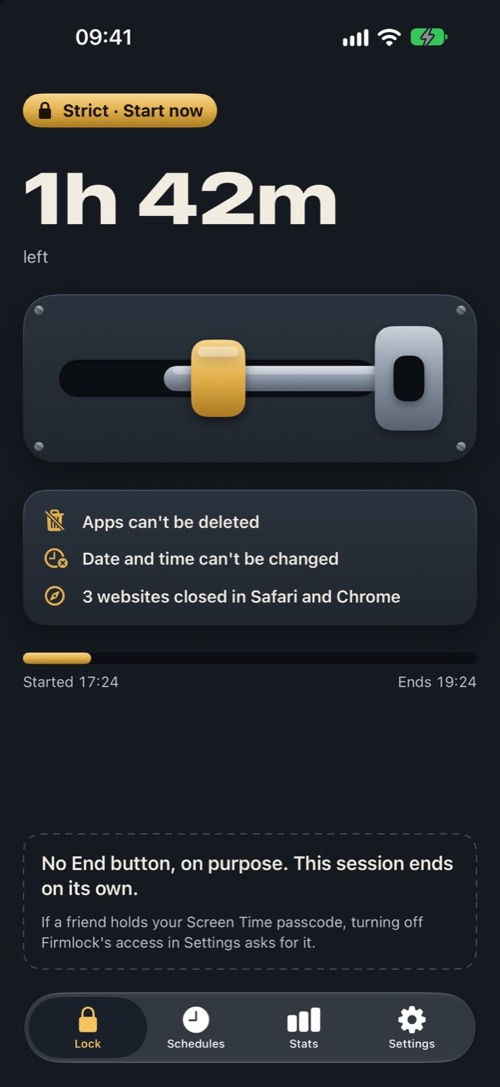
Strict: no End button until the time is up. 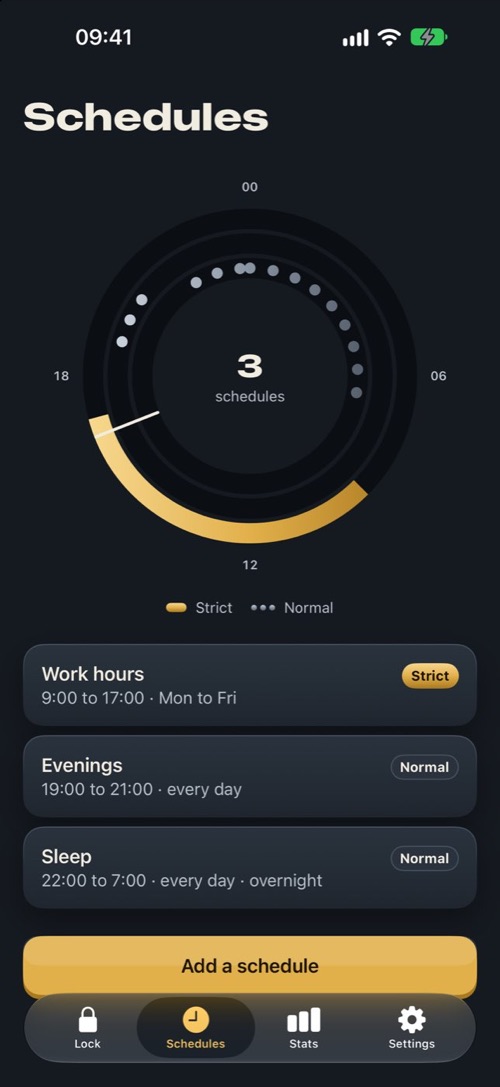
Schedules lock the same hours every week.
A strict lock has no End button. While it runs, no app can be deleted and the date and time can't be changed. A Normal lock can be ended, or paused for up to 3 breaks a day of 15 minutes each, after a 20-second breathing pause. The lock runs through Apple's Screen Time, so it holds while Firmlock is closed. For the same hours every week, add a schedule. For a daily allowance, such as 30 minutes of games, add a daily limit.
Questions
Can I lock an app with a password on iPhone?
Yes. Touch and hold the app icon and tap Require Face ID. The app then asks for Face ID, Touch ID or your passcode. It keeps other people out, but it doesn't keep you out.
Can I lock an app for one hour?
Screen Time has no one-hour lock that starts now. App Limits count daily minutes and Downtime follows a schedule. In Firmlock, pick the app, choose 1 hour and slide the bolt.
Does locking an app delete its data?
No. Screen Time and Firmlock both leave the app and your account as they are. When the lock ends, the app opens as before.
Can I unlock the apps early?
A Normal lock has an End button and breaks. A strict lock has neither. iOS still lets you turn off Firmlock's Screen Time access in Settings. Firmlock then marks the session as cut short, and if a friend holds your Screen Time passcode, iOS asks for it first.
Can I lock apps on my child's iPhone with Firmlock?
No. Firmlock is for your own iPhone. For a child's iPhone, use Apple's Screen Time through Family Sharing, where the parent holds the passcode.