How to block YouTube on iPhone, the app and the website
Short answer
How do I block YouTube on my iPhone?
Block the app and youtube.com together. If you only limit the app, YouTube still plays in Safari and Chrome. With iOS alone, give YouTube an App Limit, set a Screen Time passcode, and add youtube.com to the Never Allow list under Web Content.
With Firmlock, pick the YouTube app and tap the YouTube chip. That closes youtube.com, youtube-nocookie.com and googlevideo.com in every browser (Firmlock 1.0.2 and later), at the hours you choose.
Firmlock: Strict App Blocker is the author's app. It needs Firmlock Pro. Yearly: $29.99 after a 14-day free trial. Monthly: $4.99. Lifetime: $79.99 once. iOS 26.4 or later; not in the EU yet.

Block YouTube with Screen Time (iOS 26)
- Open Settings › Screen Time › App Limits and tap Add Limit. Find YouTube in the list, tap Next and set the time.
- Set a Screen Time passcode (Settings › Screen Time › Lock Screen Time Settings), so the limit can't be waved away.
- For the website, go to Content & Privacy Restrictions › App Store, Media, Web & Games › Web Content › Limit Adult Websites, and add
youtube.comunder Never Allow.
Sources: Apple iPhone User Guide (iOS 26): Set schedules with Screen Time and Apple iPhone User Guide (iOS 26): Block apps, app downloads, websites, and purchases. The Never Allow list is on around the clock. To close YouTube only in the evening, use Downtime for the app; the website stays blocked all day.
On iOS 27, Apple renamed these menus: Downtime became Screen Time Schedule and App Limits became Time Allowances (Apple, iOS 27). The steps above are from the iOS 26 guide.
Why YouTube keeps getting through
- An App Limit on the YouTube app doesn't touch youtube.com. The same videos play in Safari or Chrome.
- YouTube links in Messages, WhatsApp or Reddit open in a browser, sometimes one built into that app.
- Until a passcode is set, Ignore Limit is one tap. If you set the passcode, you know it.
- Limit Adult Websites also filters adult content across the web and turns off Safari's Private Browsing.
Block YouTube with Firmlock
- Tap Change apps and websites, search for YouTube in Apple's picker and select the app.
- Under Close their websites too, tap YouTube. That adds youtube.com, youtube-nocookie.com and googlevideo.com, the domain the videos stream from.
- Choose when: Start now for 15 minutes to 24 hours, a schedule such as Evenings (7 to 9 p.m. every day), or a daily limit that keeps YouTube closed until midnight once it runs out.
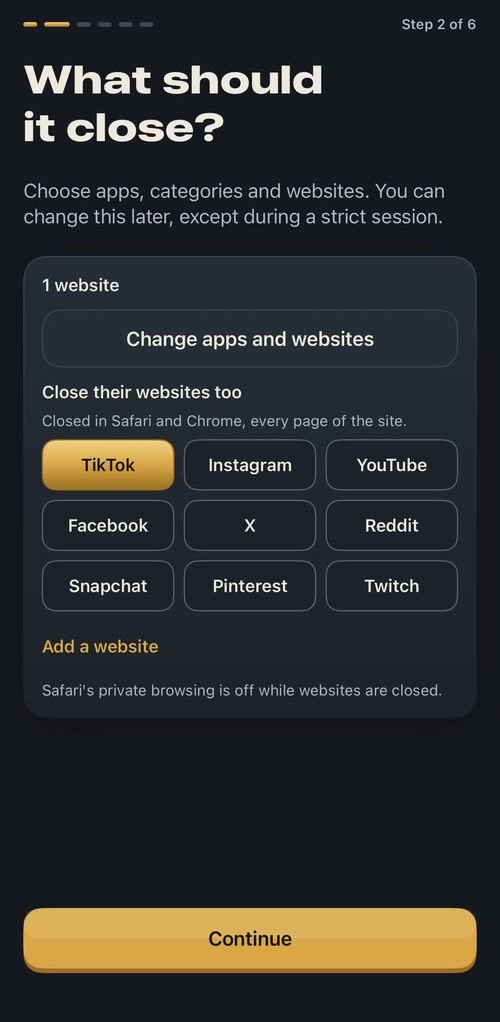
Here TikTok is picked. Tap YouTube the same way. 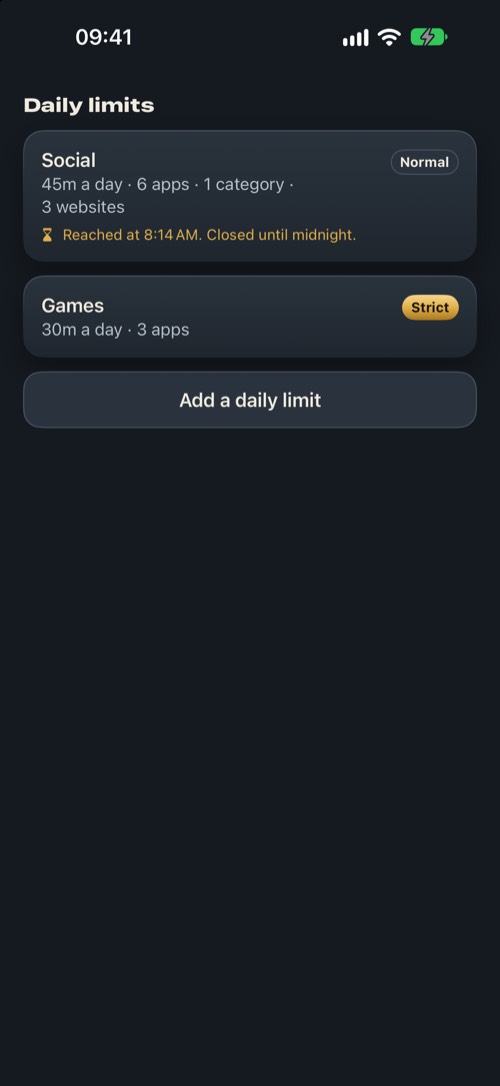
A daily limit keeps apps closed until midnight once it runs out. 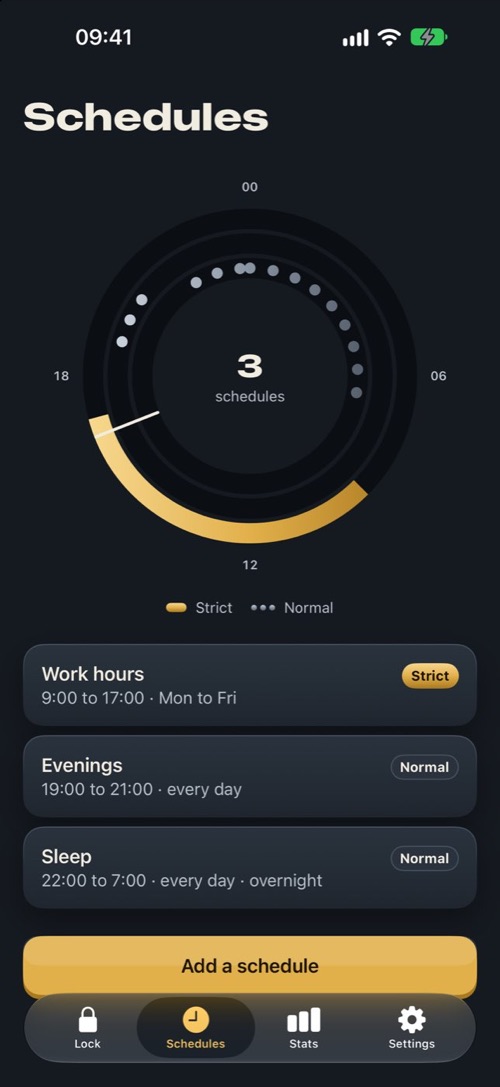
Or close YouTube at the same hours every day.
Firmlock 1.0.2 and later write the websites into Apple's system web filter. On iPhone outside the EU every browser runs on Apple's WebKit, and the filter runs inside that engine. We tested it on an iPhone with tiktok.com, not youtube.com: tiktok.com closed in Chrome, in Safari and in WhatsApp's in-app browser on November 7, 2026, and in Chrome's incognito tab and Instagram's in-app browser on November 9. While the websites are closed, Safari's Private Browsing is off. A strict session has no End button, and until it ends no app can be deleted, YouTube included.
Questions
Can I block only YouTube Shorts?
Not with Screen Time or Firmlock. Both close the whole YouTube app and the whole site, because the web filter works on the site's address, not on one part of it.
Can I block YouTube in Chrome on iPhone?
Yes. Chrome on iPhone runs on Apple's WebKit, so Apple's web filter reaches it. Screen Time's Never Allow list uses that filter all day. Firmlock 1.0.2 and later use it for the hours you set.
Can I block YouTube without deleting it?
Yes. Screen Time and Firmlock both leave the app installed with your account, playlists and downloads. Firmlock covers it with a shield until the session ends.
Can I allow YouTube for 30 minutes a day?
Yes. Give YouTube a Firmlock daily limit of 30 minutes. When it runs out, the app and the YouTube websites stay closed until midnight, and the shield has no Ignore Limit button.
Does Firmlock see which videos I watch?
No. Firmlock has no server and gets no browsing history. Apple's filter decides inside the browser, and the time you spend in apps stays on your iPhone.