How to stop scrolling on your iPhone at night
Short answer
How do I stop scrolling on my phone at night?
Have the apps close at bedtime on their own, so stopping isn't a choice you make at 1 a.m. On iOS 26 that's Downtime; on iOS 27 it's a Screen Time Schedule. Either one can be waved away unless the Screen Time passcode is one you don't know.
Firmlock's Sleep schedule closes only the apps you pick, from 10 p.m. to 7 a.m. every night, even while Firmlock is closed. In strict mode it has no End button.
Firmlock: Strict App Blocker is the author's app. It needs Firmlock Pro. Yearly: $29.99 after a 14-day free trial. Monthly: $4.99. Lifetime: $79.99 once. iOS 26.4 or later; not in the EU yet.

Set up Downtime on iPhone (iOS 26)
- Open Settings › Screen Time. Turn on App & Website Activity if it's off.
- Tap Downtime, then Scheduled. Choose Every Day or Customize Days and set the start and end, for example 10:00 PM to 7:00 AM.
- To make it binding, set a Screen Time passcode, then turn on Block at Downtime.
Source: Apple iPhone User Guide (iOS 26): Set schedules with Screen Time. With Block at Downtime off, Downtime shows a reminder and lets you keep going. iOS also sends a reminder 5 minutes before Downtime starts. On iOS 27, open Screen Time › Screen Time Schedule, turn on Schedule and tap Add Schedule (Apple iPhone User Guide (iOS 27): Screen Time Schedules and Time Allowances).
Where Downtime falls short
- It closes everything except the apps you allow, so you choose what to keep instead of what to close. Music, maps and anything else you use at night have to go on the allowed list.
- The passcode is the only thing between you and More Time. If you set it, you know it.
Close the apps at bedtime with Firmlock
- Open Schedules and add a schedule. Sleep is one of the starting points: 22:00 to 7:00, every day, overnight. Change the hours if you go to bed later.
- Tap Change apps and websites and pick what keeps you up: single apps, whole categories like Social or Entertainment, and their websites.
- Turn on Strict if you want no End button. Making a strict schedule looser takes effect 24 hours later and never during its hours; making it stricter takes effect right away.
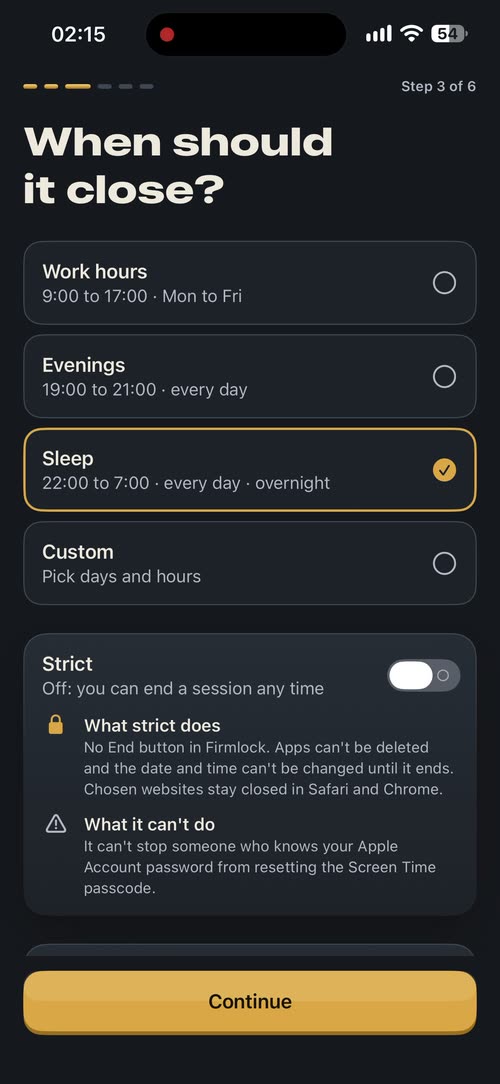
Sleep: 22:00 to 7:00, every night. 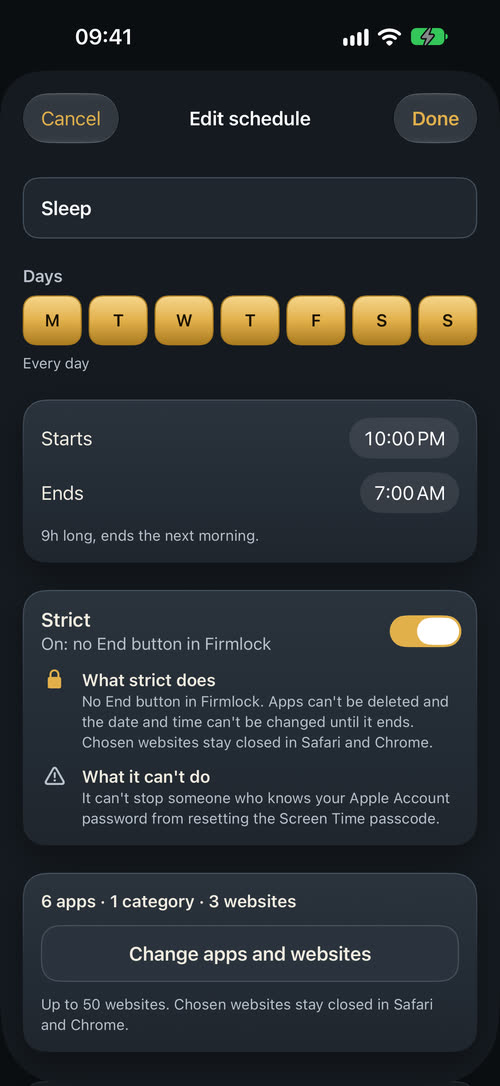
Strict on: no End button in Firmlock. 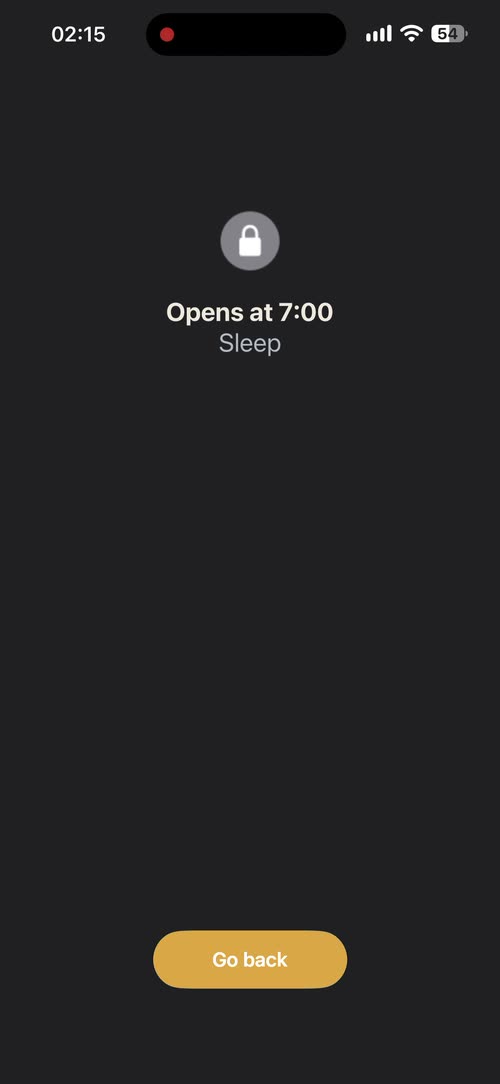
2:15 a.m. on our iPhone.
The schedule runs through Apple's Screen Time, so it starts and ends on time while Firmlock is closed. At 2 a.m. a closed app shows a shield that says “Opens at 7:00” with the schedule's name. If you'd rather keep a way out at first, leave Strict off: a normal schedule can be ended, or paused for up to 3 breaks a day of 15 minutes, each after a 20-second breathing pause.
Things that help without any app
Charge the phone outside the bedroom and use a separate alarm clock, so the phone isn't within reach. Grayscale makes the feed duller to look at: Settings › Accessibility › Display & Text Size › Color Filters › Grayscale.
Questions
Will my alarm still go off?
Firmlock closes only the apps and websites you pick, so leave out the Clock app and anything you need at night.
Can I still get calls and texts at night?
Yes, unless you pick Phone or Messages yourself. Firmlock closes only what you choose.
What if I need an app in the middle of the night?
With Strict off, you can end the session or take a 15-minute break, up to 3 a day. With Strict on, there is no End button and the apps open at the time you set.
Does the Sleep schedule work if Firmlock is closed?
Yes. Schedules run through Apple's Screen Time, so they start and end on time while Firmlock is closed.
Can I use different bedtimes on weekends?
Yes. Each schedule has its own days and hours, so you can have one for Sunday to Thursday and another for Friday and Saturday. Firmlock keeps up to 15 schedules.