How to get rid of Ignore Limit in Screen Time
Short answer
How do I turn off Ignore Limit in Screen Time?
iOS has no switch that hides Ignore Limit by itself. It goes away once a Screen Time passcode is set: the limit then asks for that passcode before it gives you more time.
If you chose the passcode, you can still type it. So have a friend choose it and keep it. Firmlock's friend lock walks you through that, and afterwards turning off Firmlock's own Screen Time access asks for the same passcode.
Firmlock: Strict App Blocker is the author's app. It needs Firmlock Pro. Yearly: $29.99 after a 14-day free trial. Monthly: $4.99. Lifetime: $79.99 once. iOS 26.4 or later; not in the EU yet.

What Ignore Limit does
When an App Limit runs out, iOS covers the app and offers Ignore Limit, with One More Minute, Remind Me in 15 Minutes or Ignore Limit for Today. Apple's guide says that by default a limit can be ignored once it's reached (Apple iPhone User Guide (iOS 26): Set schedules with Screen Time).
Make limits stick with a Screen Time passcode (iOS 26)
- Open Settings › Screen Time and tap Lock Screen Time Settings. Enter a 4-digit passcode. iOS then asks for your Apple Account, which is how the passcode can be reset later.
- Open App Limits, tap a limit and check that Block at End of Limit is on.
- For bedtime, tap Downtime and turn on Block at Downtime.
From now on the limit asks for the passcode. That stops you only if you don't know it, which is the point of the next step.
On iOS 27, Apple renamed these menus: Downtime became Screen Time Schedule and App Limits became Time Allowances (Apple, iOS 27). The steps above are from the iOS 26 guide.
Have a friend hold the passcode
You can do this without any app: hand your iPhone to someone you trust at step 1 and let them type a passcode they keep. Firmlock's friend lock (Settings › Friend lock guide) does the same with less fuss:
- Firmlock makes a 4-digit code. It skips easy guesses like 1111 or 1234.
- Tap Send the code. The message reads “Please keep this Screen Time passcode for my iPhone and don't tell me”, followed by the code.
- Firmlock shows the steps in Settings: Screen Time › Lock Screen Time Settings, enter the code, then your Apple Account. The code stays hidden unless you hold the button, and Firmlock doesn't keep it.
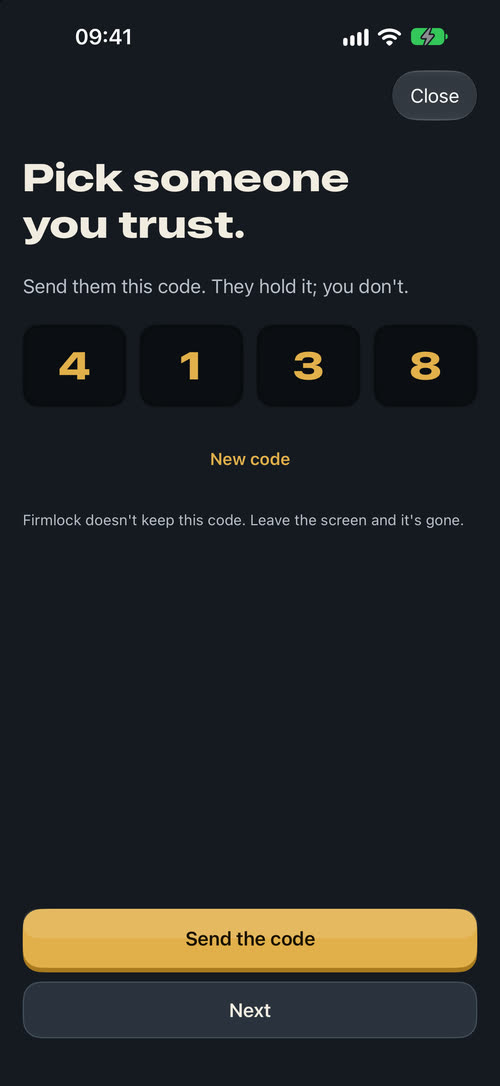
Firmlock makes the code and you send it. 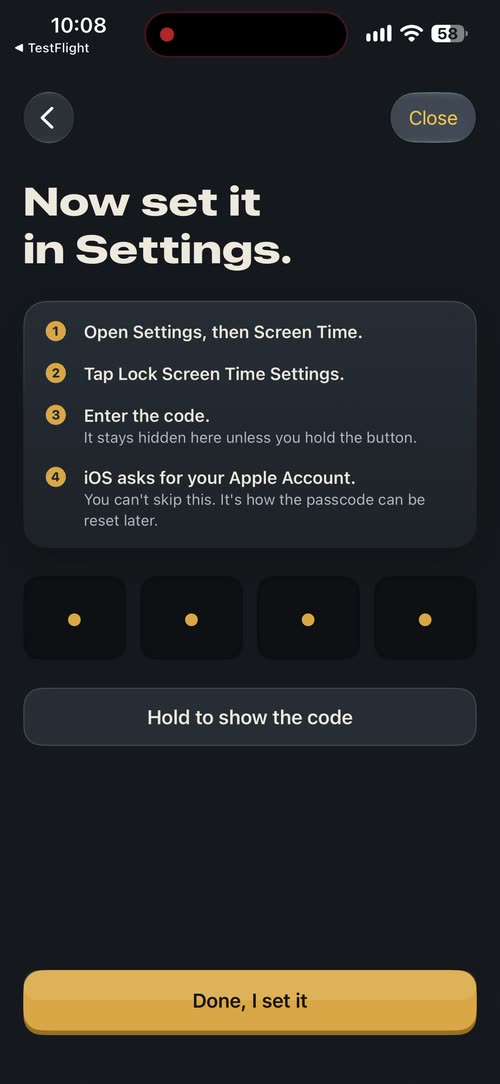
Then you set it in Settings. The code stays hidden. 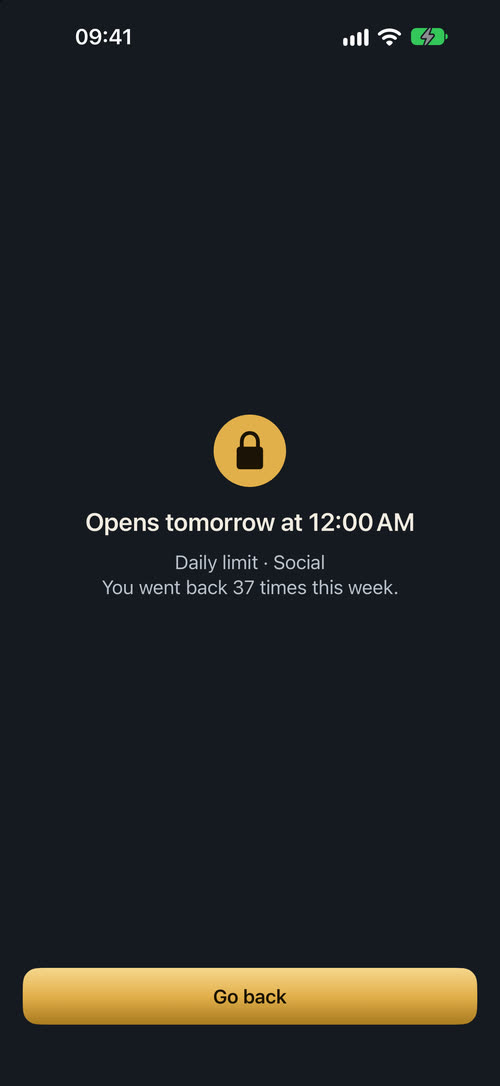
A Firmlock daily limit: no Ignore Limit button.
After that, your own iOS limits stop offering Ignore Limit, and turning off Firmlock's Screen Time access in Settings asks for your friend's passcode. One way around it remains: someone who knows your Apple Account password can reset the Screen Time passcode. Firmlock's schedule editor says so too.
Questions
Can I remove Ignore Limit without a passcode?
No. Without a Screen Time passcode, iOS keeps offering Ignore Limit when an App Limit runs out.
What if my friend loses the passcode?
You can reset it with your Apple Account. That's why iOS asks for the Apple Account when the passcode is set.
Does Firmlock's daily limit have an Ignore Limit button?
No. When a Firmlock daily limit runs out, its apps stay closed until midnight and the shield has only a Go back button. Loosening a strict limit takes effect 24 hours after you change it.
Can someone still get around a friend-held passcode?
Yes, anyone who knows your Apple Account password can reset it. A friend-held passcode makes giving in slow, which is usually enough.
Do I need Firmlock to have a friend hold my passcode?
No. A friend can type a passcode of their own on your iPhone. Firmlock adds a random code to send, the steps on screen, and a passcode check before its own access can be turned off.