How to turn your iPhone into a dumb phone, and back
Short answer
Is there a dumb phone mode on iPhone?
Not under that name, but you can build one: close the apps that pull you in and keep calls, texts, maps and the camera. With iOS alone, Downtime (Screen Time Schedule on iOS 27) blocks everything except the apps you allow, and Assistive Access replaces the Home Screen with a few large buttons.
With Firmlock, you pick what to close, such as Social, Games and Entertainment, and lock it for up to 24 hours or on a schedule. A strict session can't be ended early.
Firmlock: Strict App Blocker is the author's app. It needs Firmlock Pro. Yearly: $29.99 after a 14-day free trial. Monthly: $4.99. Lifetime: $79.99 once. iOS 26.4 or later; not in the EU yet.

Three ways to do it with iOS alone
Downtime with a short allowed list
Settings › Screen Time › Downtime closes every app except the ones under Always Allowed. Add Phone, Messages, Maps and whatever else you need, set a passcode and turn on Block at Downtime (Apple iPhone User Guide (iOS 26): Set schedules with Screen Time). On iOS 27 the same idea is a Screen Time Schedule (Apple iPhone User Guide (iOS 27): Screen Time Schedules and Time Allowances).
Assistive Access
Settings › Accessibility › Assistive Access swaps the whole interface for a handful of large apps you choose. Apple built it for people with cognitive disabilities, and some people use it as a minimal phone. To leave it, triple-click the side button and enter its passcode.
Grayscale
Settings › Accessibility › Display & Text Size › Color Filters › Grayscale. Everything still works, it's just less fun to look at.
Where these fall short
- Downtime makes you list what to keep, and the list grows every time you need something. With a passcode you set, More Time is always one entry away.
- Assistive Access changes how the whole phone works, and leaving it for one errand takes the triple-click and its passcode every time.
Dumb phone mode with Firmlock
- Tap Change apps and websites and pick whole categories, like Social, Games and Entertainment, plus any single apps. Apple's picker lists the apps in each category, so check before you pick one. Apps you don't pick stay open.
- Under Close their websites too, tap the services you'd otherwise open in a browser.
- Choose how long: Start now for 15 minutes to 24 hours, a schedule for the days you want quiet, or a daily limit. Turn on Strict, and until the session ends there is no End button, no app can be deleted and the date and time can't be changed.
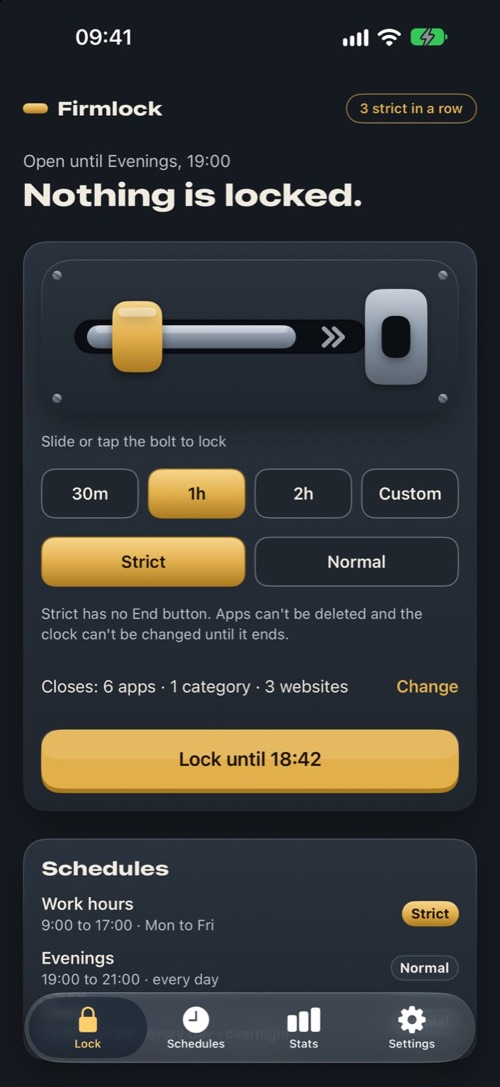
Pick a length, Strict or Normal, and slide. 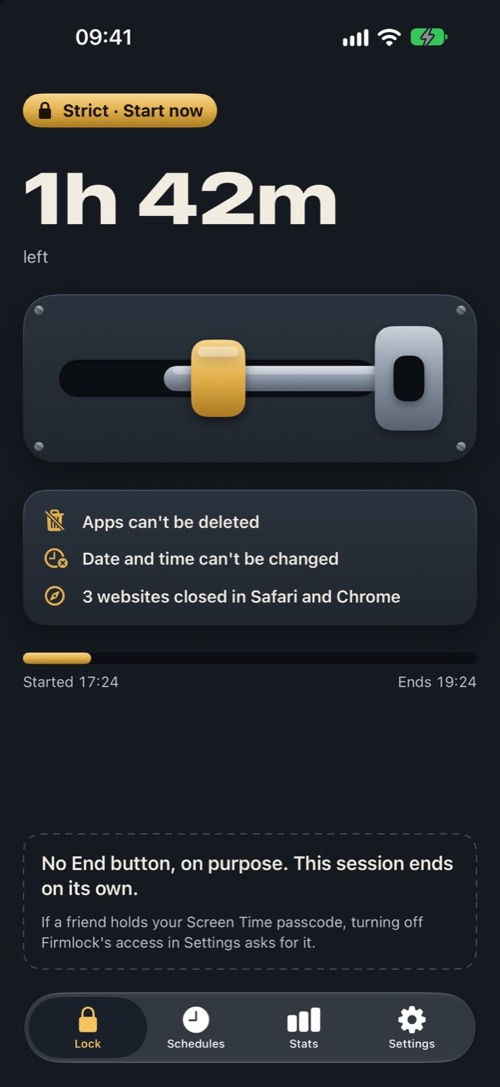
A strict session has no End button. 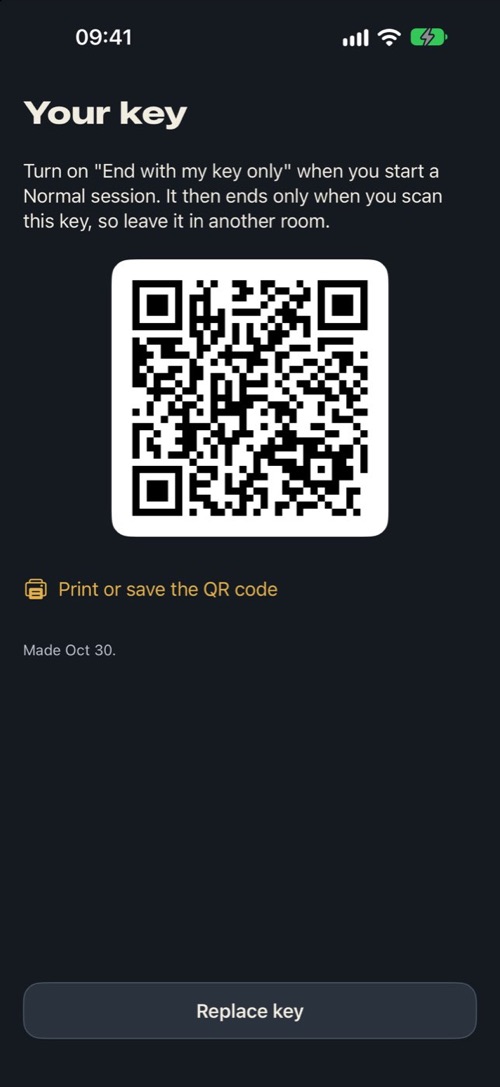
A printed key, for a session that ends only in another room.
When the time is up, the apps open by themselves. For a Normal session you can't end from the couch, turn on End with my key only. It ends early only when you scan your key, a QR code you print and leave in another room.
Questions
Will calls and texts still work?
Yes. Firmlock closes only the apps and websites you pick, so Phone and Messages keep working unless you choose them.
How do I exit dumb phone mode?
In Firmlock, the apps open when the session's time is up; a Normal session also has an End button. If something stays closed afterwards, open Firmlock › Settings › Apps still closed? and tap Open them. Assistive Access ends with a triple-click of the side button and its passcode.
Can I keep Maps, the camera or my bank app?
Yes. Pick only the categories and apps you want gone. Everything else stays open.
Do I need to buy a dumb phone?
No. These steps keep your iPhone, its number and its apps. A separate phone means carrying two devices or moving your number.
Does Firmlock work on Android?
No. Firmlock is built on Apple's Screen Time and needs an iPhone with iOS 26.4 or later.